
How to Add AudioBook CDs to iPhone - The Final Frontier of Syncing
After scouring the internet for a logical answer to getting mp3's from a ripped audiobook cd into iBooks on the iPhone (or iPad for that matter), I came to the conclusion that there just isn't a good way sync them still. I finally had to sit down and figure it out myself... it was painful.
The reason for getting mp3's into iBooks on the phone is simple, it allows you to have all the features you need when listening to an audiobook. The two main features are the ability to pick up right where you left off (available on music, but you have to turn on a special setting... ain't nobody got time for that), and the ability to speed up or slow down the audiobook to your liking (definitely not available in music). I'm also just super OCD when it comes to organizing my media, and an audiobook inside the music library is enough to make me go insane.
How to Sync MP3's to iBooks on your iPhone
-
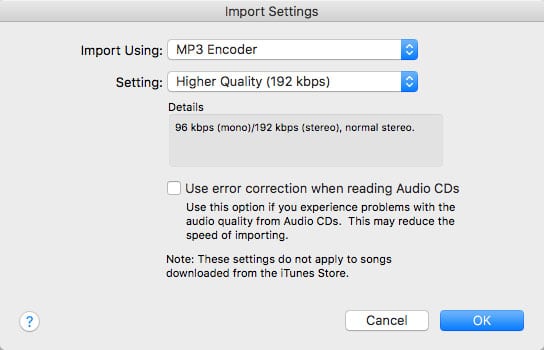
Start by ripping the audiobook cd with your whatever ripping software you'd like. Most of the time iTunes is more than sufficient. Before ripping the CD, make sure to have your import settings configured correctly. You can access the preferences pain under the menu item iTunes->Preferences, or by pressing "Command-,". Here are the settings I have for my import:

-
You'll want to also make sure you import the CD with correct titles, tracks and discs in order to keep the play order accurate. Don't want to get chapters out of order, nobody wants to know Harry dies at the end without being adequately prepped... What?
-
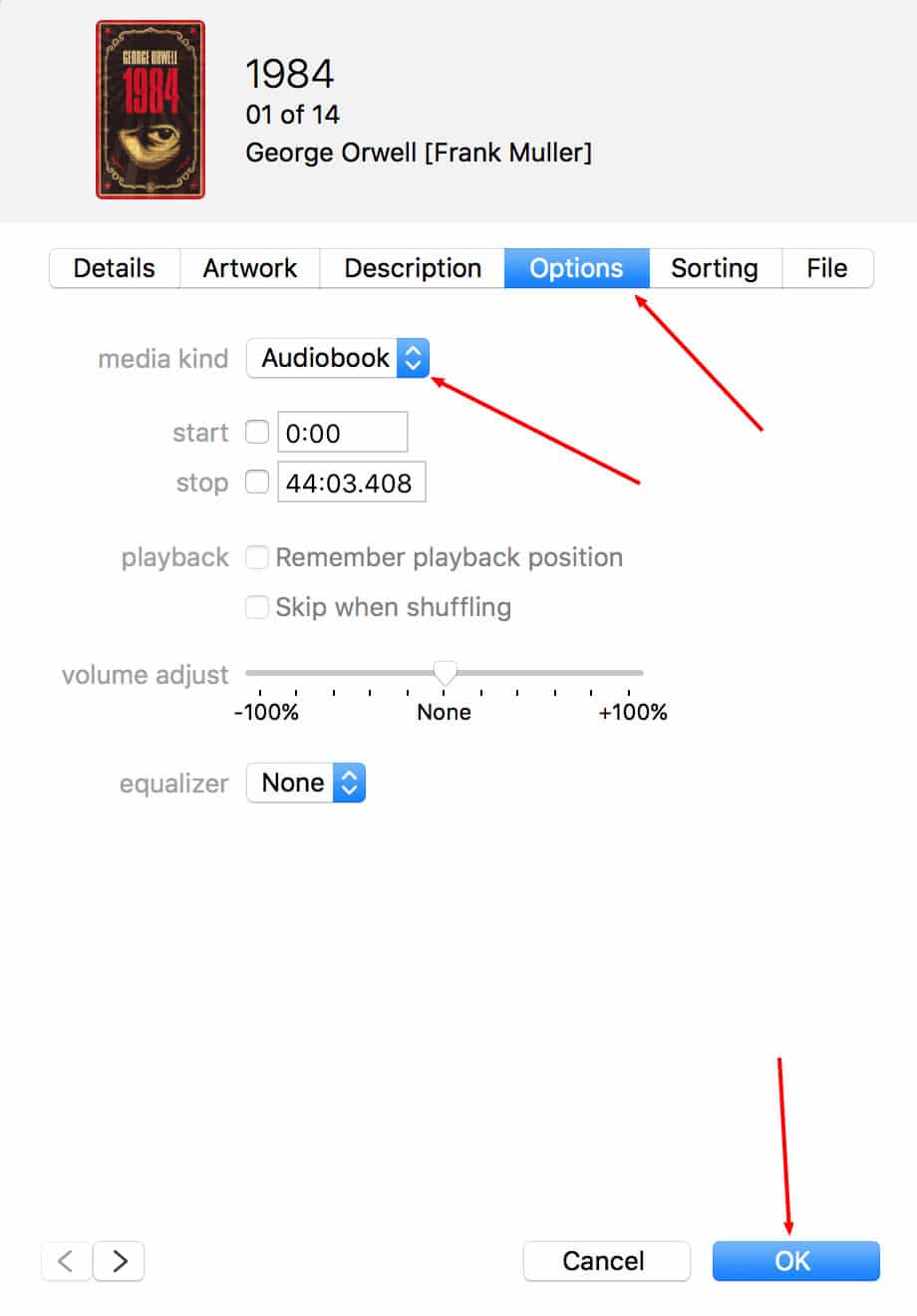
Once you've ripped the CD into your library you have to change the file from a "Music" media type to "Audiobook". You do this by highlighting all the tracks, right-clicking, then clicking "Get Info" from the popup menu. On the get info screen, switch to the "Options" tab and change the media kind to "Audiobook" and click OK.
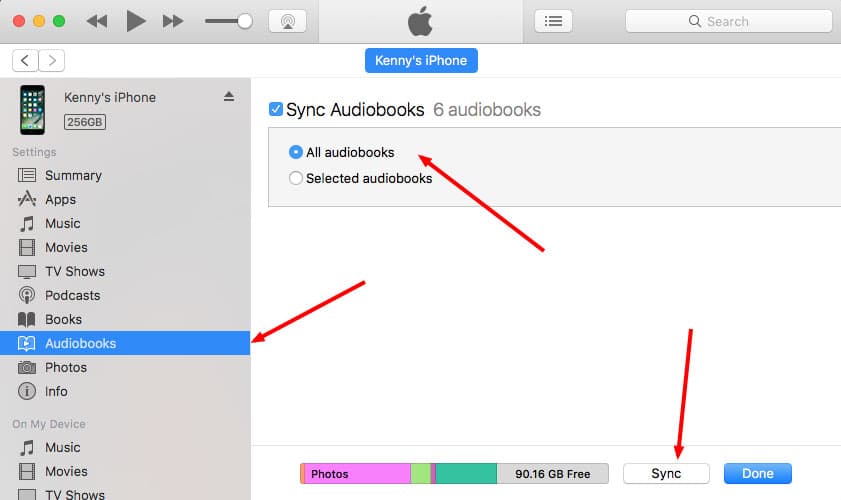
- You're almost there. Next step is getting said Audiobook actually onto your iPhone. If you're like me, everything syncs over the cloud these days. Everything. Guess what doesn't? Audio-freaking-books. You're going to have to actually unplug the white cord from your wall charger and plug it into your computer in order to get that audiobook transferred over with a manual sync. Once plugged in, your iPhone will show in a tiny icon in the iTunes window:

- Go to the Audiobooks section, select the Sync Audiobooks checkbox, and choose whether you want all of them or a few of them and click the "Sync" button at the bottom of the screen.
Setting Up Wifi Sync
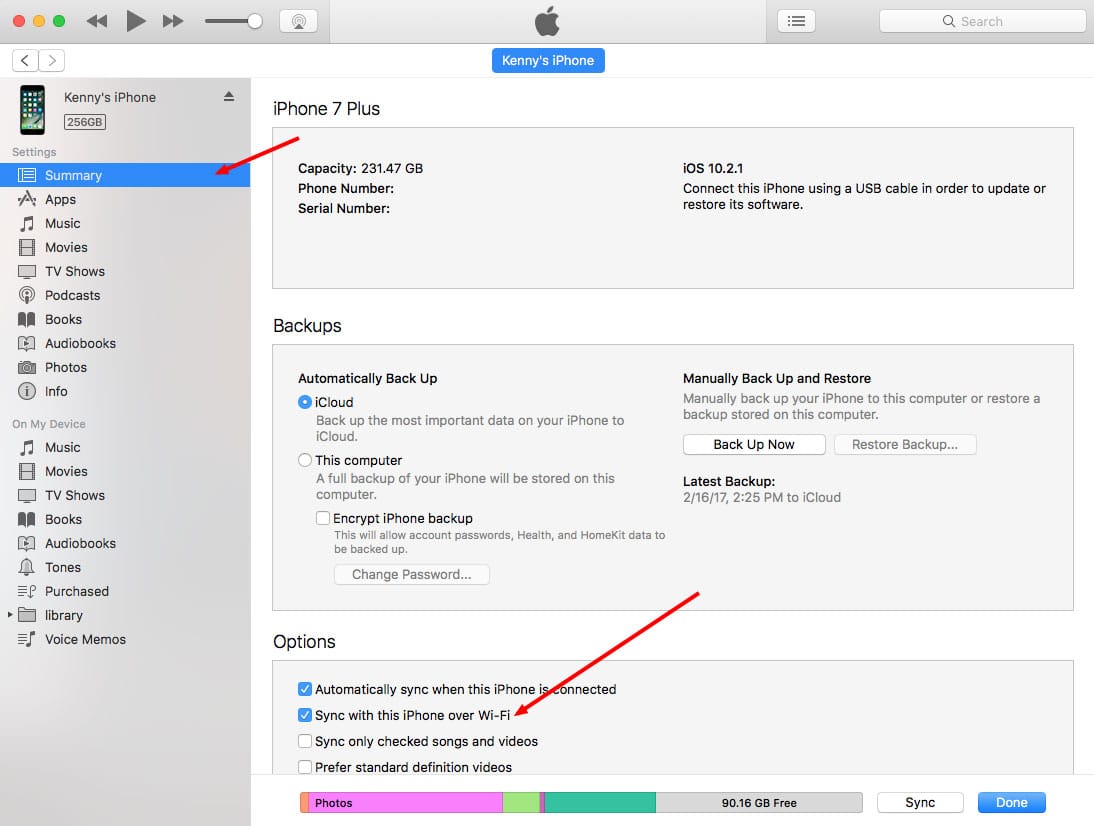
While you're plugged in, you might as well turn on the feature to sync your iPhone over wifi. Then you won't have to pull out the charger cable next time you need to sync. That's located on the main summary page of the phone sync settings:
And like that, You're Syncing Audiobooks to iBooks on the iPhone
One strange thing this doesn't do, it DOESN'T put the audiobook into your iBooks library on the Mac. No idea why. Doesn't make sense. I'm sure they'll eventually end up fixing that, but for now, you import into iTunes and you sync them to your iPhone so you can play them in iBooks. Weird.
Good luck.
Comments (9)


I had to do an update before it would work, but I just started listening to my audiobook at what I consider a reasonable speed (2x).
The only thing that confuses me is that I did the sync by clicking the playlist I made with the whole book, but ibooks has it as separate discs and I can't find my playlist to run through the whole thing. Still manageable though, so really - Thanks a lot! :-)


As well as the Album name if available, and if there are multiple authors for the book, make sure you check the box to make them a part of the compilation.
Hope that helps!

